This Site is Under Construction if U Want a Site then Goto To Contact us tab and send ur mess Thank:You

Sunday, 16 October 2011

New Backgrounds


Free Twitter Backgrounds


Cool Twitter Backgrounds


Free Twitter Background


Free Twitter Backgrounds


Free Twitter Background


Free Twitter Backgrounds


Retro Twitter Backgrounds


Abstract Twitter Background


Free Twitter Backgrounds


Twitter Backgrounds


Bulldog Twitter Background


Twitter Backgrounds


Cool Twitter Backgrounds


Twitter Background

Another Thirteen Codes Of Fb Page Tutrial


Another Thirteen Codes Of  Fb Page Tutrial


Hide contents of the tab


To insert a pic so that it is linked to a website


Invite your online friends 


Button Linked To Url 


Google Search Box


Facebook Search


Open a Site Inside a Page


Make Scrollable Box


Microsite Code


Fbml Text Code And Colour


Fbml Comment With Image


Snow on Your Page


Rain on your page


How To Add Background Image

How To Add Background Image

Copy the code and belo you see Image Url Put Your Image Direct Link Then Copy It and Go to Your Fbml coding area and paste it on the top of your Fbml coding


Background Image


How To Add A Background Colour

How To Add A Background Colour


First of all here is the Background Code Replace the IMAGE URL with image code under the image and expand the the space from here width:520px; height:5000px;">


Background Colour


All Colour Codes


How To Add A Like Button

How To Add A Like Button

 Like Button


I have named this post “Facebook “Like” Button html Tutorial For Fan Pages“, but as you can see from the like button I have inserted above this post, this Facebook “like” button can in fact be inserted into any html coded page. So why have I felt the need to share this particular button with you I hear you ask?   There are two reasons why I like this button….pardon the pun :-)
1.  It gives the option to include the faces of some of your fans or “likes”. When someone sees the face of someone they like, respect, trust and whose opinion they value, they are far more likely to “like” your page….it essentially validates your page in the eyes of your visitor.  The pictures also give the button far greater prominence and it is therefore less likely to be overlooked by new visitors.
2.  When someone ‘likes’ your page, it automatically brings up a box asking that person to share your page with a Status update on their Facebook Wall, including a link back to your page.  A status update with your page’s image, a comment from the person “liking” your page and a link to your page, is going to attract far more attention on their Wall than the small grey text that says…. “Jo Blog likes xyz page” and that currently appears on the Wall when someone ‘likes” your page.
The following short video is a Facebook “Like” Button html Tutorial for Fan Pages that will walk you step by step through the process of creating the html code you need for the button and then show you how to insert it into a Facebook Fan Page. In the tutorial I am using the Static “html:  iFrames Tabs” Application to add the code to my Fan Page.  My previous post will walk you through setting up this Application on your Fan Page if you need assistance with this.
Alternatively, if you are wanting to add the Facebook “Like” Button somewhere else, such as a blog post like this one, you simply take the same code and copy and paste it to the html editor of your choice.

Facebook “Like” Button html Tutorial For Fan Pages


The Facebook Developers Page mentioned in the video is… http://developers.facebook.com/docs/reference/plugins/like/
I hope you have enjoyed this “Facebook “Like” Button html Tutorial For Fan Pages”. As always I welcome your comments and please remember to “like” my page, if you haven’t already done so :-)

How to add Share Button Code


How to add Share Button Code
Olivia Chow's Community Art Project - Screwed Out of Our Share (by Medmoiselle T)
FBML provides the code to include a little share button, like the ones you see on the bottom right of the wall, on your customized fan or business page.
When you are on any tab on a fan page other than the wall, there isn’t a share button, so it’s useful to be able to add one so that visitors can share the page with their friends or even post your page to their own wall.
And this little bit of FBML is super easy to use.

The little share button at the bottom left of the wall page looks like this:
Unfortunately, the button can not be customized. It’s going to look just like that. But, it can be added.
The code is:
<fb:share-button class="url" href="http://facebook.com/
Anti.Social.Development" />
The only thing that you need to change is the the url after http:// to the one for your own fan page.
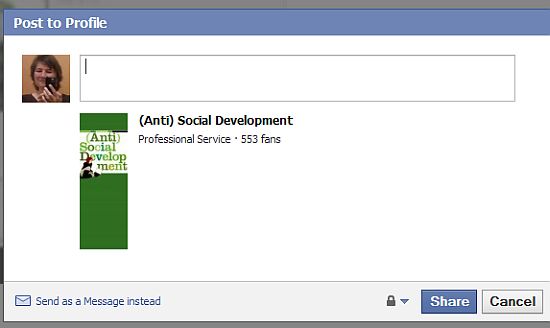
When the button is clicked on the share box looks like the following:
It’s pretty basic and includes the general information that Facebook has about your fan page.
If you want to make the share box a little fancier you would use the fbml that includes the meta class rather than the url class. With the meta class you can specify the image that is displayed rather than using the default logo and include a description that contains more information about the content of your page.
<fb:share-button class="meta">
<meta name="medium" content="mult"/>
<meta name="title" content="name of fan page"/>
<meta name="description" content="description of fan page"/>
<link rel="image_src" href="url to image location" />
<link rel="target_url" href="http://facebook.com/Anti.Social.Development"/>
</fb:share-button> 
  • meta name=”title” content=”"name of fan page” – the name of your fan page
  • meta name=”description” content=”description of fan page” – the description you want to use.
  • link rel=”image_src” href=”url to image location” – if you are using an alternative image, this would be the location on your server
  • link rel=”target_url” href=”http://facebook.com/Anti.Social.Development” – the url to the fan page that you are sharing
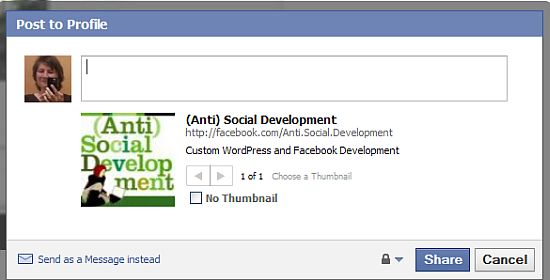
The message box when using the meta class looks like the following.
You can see that a different logo is being used and that the description that I specified is providing more detailed information about the page.
Just one more little thing you can do with FBML on your fan page.


How to insert mp3


How to Do It


  1. Locate the music file URL. You need to have the file uploaded to your server in order to create the link to it. For example, the one I am using for testing purposes is located at http://kimwoodbridge.com/We Were Promised Jetpacks_01_It’s Thunder And It’s Lightning.mp3
  2. The music file must be an mp3. This does not work with .wav files.
  3:The fbml code used is:


Insert mp3

How to Embed a YouTube Video in Static FBML


How to Embed a YouTube Video in Static FBML

As with images, I would recommend a maximum width of 520px for a tab. After uploading your video, you want to use this code:
<fb:swf swfbgcolor=”000000” imgstyle=”border-width:##px; border-color:white;” swfsrc=”http://www.youtube.com/v/xxxxx” imgsrc=”http://img.youtube.com/vi/xxxxx/2.jpg” width=”520″ height=”400″ />
Replace the xxxxx with your YouTube’s video ID. In both examples below, “MqqKPWhY4es” is my YouTube ID.
Example 1: In this YouTube link: http://www.youtube.com/watch?v=MqqKPWhY4es, all the characters after the “=” are the YouTube ID.
Example 2: If your YouTube link looks like this: http://www.youtube.com/watch?v=MqqKPWhY4es&feature=player_embedded, all the characters after the “=” and before the “&feature” will be the YouTube ID.

Insert Youtube Video